Before you start
- You need the latest version of Folino on your iPhone or Android phone and the Google account your notes are in.
- Did you just change something in Google Keep? Wait until you can see it on keep.google.com. The export contains the state at the moment it starts.
- When Google’s email arrives later, it’s best to open it on the phone where Folino is installed. That way the ZIP file ends up right where you need it.
- You can also start in Folino: under Menu › Data Maintenance › “Import from other apps”, the app walks you through the same steps.
Part 1 of 2
At Google: create the export
Google Takeout packs your notes into a ZIP file. This works on your phone and on a computer.
- Open Google Takeout. The button takes you straight to the export – Google Keep is already selected. If you’re asked for your Google account, pick the one your notes are in. Open Google Takeout
- Tap “Next step”, then “Create export”. Leave all other settings as they are.
- Wait for Google’s email and download the ZIP file. It arrives as soon as the export is ready – usually within minutes, later if you have lots of notes and images.
Part 2 of 2
In Folino: import your notes
Folino reads the ZIP file, shows you what will come along first, and puts everything into a new folder.
- Open the menu in Folino and tap “Import from other apps” under “Data Maintenance”. Choose “Google Keep”. You already know the short guide you’ll see there.
- Tap “Choose ZIP file” and pick the file from the email. If Google split the export into several ZIP files, select all of them at once – Folino puts them back together.
- Check the preview and tap “Import”. The preview counts notes, checklists, images and recordings, shows the new folders and tells you what won’t come along.
- Done: your notes are in the new folder “From Google Keep (date)”. Your other notes in Folino stay as they are. Not happy with the result? Just delete this folder.
What comes along – and what doesn’t
Comes along
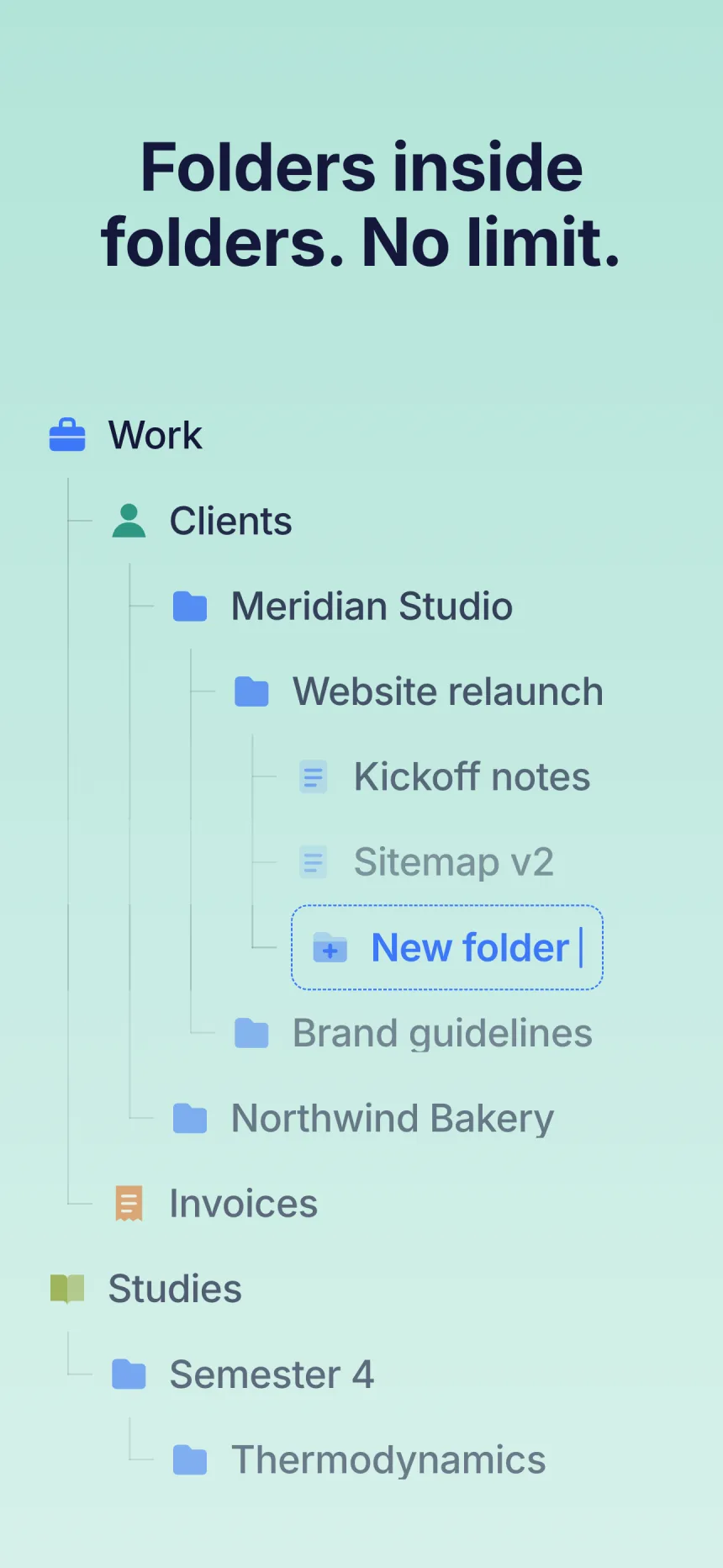
- Text with formatting: bold, italic, underline, strikethrough, headings, lists and links
- Checklists – checked items stay checked
- Images
- Voice notes
- Labels as folders: the first label becomes the folder, further labels are listed at the end of the note
- Archived notes, in the folder “Archive”
- Pinned notes and the original date
- Note colors – visible with Premium
Doesn’t come along
- Notes in the Google Keep trash
- Reminders and sharing with other people
- Indentation in checklists: sub-items become regular items
- Images and voice notes attached to checklists – the checklist text comes along
If something goes wrong
The most common stumbling blocks – and what helps.
Google Keep isn’t selected in Google Takeout
Tap “Deselect all”, then tick the “Keep” entry. Continue with “Next step” as above.
Google sent several ZIP files
Download all of them and select them in Folino at once. If Folino says part of the export is missing, one of the files wasn’t included.
Folino says the files come from different exports
You picked files from two exports, for example an old one and a new one. Choose only the ZIP files from one email.
Folino finds no notes in the file
It’s probably a different ZIP file. Choose the file from the Google Takeout email.
The ZIP file is incomplete or damaged
Usually the download was interrupted. Download the file from Google’s email again.
I can’t find the downloaded file
Downloaded files are usually in the “Downloads” folder. You can switch to it in the file picker Folino opens.
Google’s email doesn’t arrive
With lots of notes and images, the export takes longer. Also check the spam folder of the mailbox that belongs to your Google account.
Frequently asked questions
Does importing cost anything?
No, it’s free – even without Premium. You’ll see images in the free version too. Folino always keeps the note colors; they’re shown with Premium.
Will my notes stay in Google Keep?
Yes. Google Takeout only creates a copy, nothing changes in Google Keep.
Can I keep using Google Keep afterwards?
Yes. But anything you change in Google Keep afterwards won’t come along automatically. If you import a new export, it goes into its own folder again.
What happens if I import the same file twice?
Folino recognizes the file and points it out in the preview. If you import it anyway, you get a second folder with the same notes.
Can I do this on a computer?
You can create the export at Google on a computer. Folino itself is available for iPhone and Android – so the ZIP file needs to get to your phone. The easiest way is to open Google’s email right there.
Not sure yet whether Folino fits?
Download Folino for free
Free for Android and iOS. No ads, no subscription.

Scan the QR code with your phone camera – the store opens right away.
Google Keep and Google Takeout are trademarks of Google LLC. Folino is an independent product and is not affiliated with Google.